
How to Write Prompts for Claude AI
If you have ever typed something into Claude AI and felt like the response missed the mark, the problem is almost never Claude. The real issue is the prompt you used to ask the question. Writing a good AI prompt is a skill, and like any skill, the right tools make it dramatically easier.
That is where ChatQuick comes in. ChatQuick is an AI prompt platform that gives you access to over one million refined prompts across more than 100,000 task categories. Whether you are a content creator, marketer, business owner, or complete beginner, ChatQuick takes the guesswork out of prompting Claude AI.
In this guide, you will learn exactly how to use ChatQuick to write powerful prompts for Claude AI in just a few simple steps. No technical knowledge is required, and you can get started for free today.
Why Prompts Matter When Using Claude AI
Claude AI is one of the most capable AI models available, but it responds directly to the quality of the instruction you give it. A vague prompt produces a vague answer, while a well-structured prompt produces a detailed, accurate, and useful response. This is why prompt engineering has become one of the most valuable skills in the AI space.
Most beginners struggle with prompts because they do not know how to frame their request, add the right context, or specify the format they want. ChatQuick solves this by providing pre-built, community-tested prompts that are already optimized to get the best results from AI models like Claude. Instead of starting from a blank page, you start from a winning formula.
Understanding why prompts matter is the first step to getting real value from Claude AI. Once you pair the right prompt structure with Claude’s reasoning ability, the results you get will feel like a completely different tool.
What Is ChatQuick?
ChatQuick is an AI-powered prompt platform designed to help users generate, discover, and manage high-quality prompts for AI tools like Claude, ChatGPT, and Gemini. It features a massive Prompt Library with over one million prompts organized by category, as well as a built-in Prompt Engineer tool that generates custom prompts based on your idea.
The platform also includes an Audio Notebook, Saved Prompts, team collaboration features, and a Chrome extension for quick access anywhere.
ChatQuick is built for everyone from beginners who have never written a prompt before to experienced professionals managing AI workflows at scale. You can browse prompts by category, search for specific use cases, upvote your favorites, and save the ones you use most often. It is a complete prompt management system in one clean, easy-to-use platform.
The platform is free to get started and available directly at chatquick.co without any complicated setup. It is one of the most practical AI tools you can add to your workflow right now, especially if you use Claude AI on a regular basis.
How to Write Prompts for Claude AI Using ChatQuick
Step 1: Visit ChatQuick and Create a Free Account
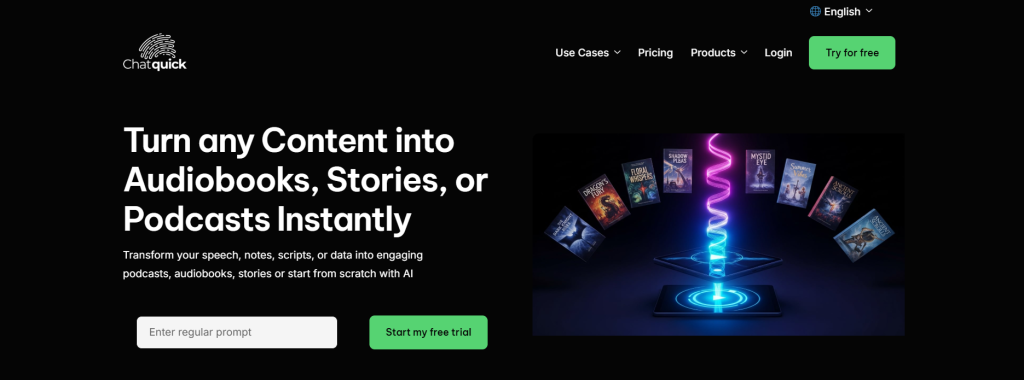
The first thing you need to do is go to chatquick.co and sign up for a free account. The sign-up process is quick and straightforward, requiring only basic details to get you started. Once you are logged in, you will land on the main dashboard where all of ChatQuick’s features are available to you.
Step 2: Browse the Prompt Library
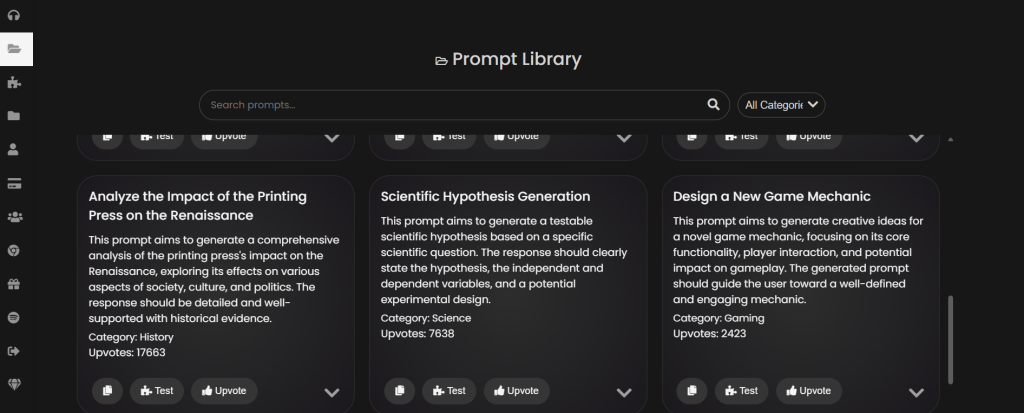
After signing in, navigate to the Prompt Library section from the left-hand sidebar. You will find a searchable collection of over one million prompts organized across categories like Marketing, Business, Writing, Science, History, Gaming, and many more.
Each prompt card shows the title, a brief description of what the prompt does, its category, and the total number of upvotes from the community.
You can search for prompts using the search bar at the top of the library or filter by category using the dropdown menu.
When you find a prompt that fits your needs, you can copy it directly, click Test to preview the output, or Upvote it to save it as a favorite. This library alone saves hours of trial and error when trying to get useful responses from Claude AI.
Step 3: Use the Prompt Engineer to Generate a Custom Prompt
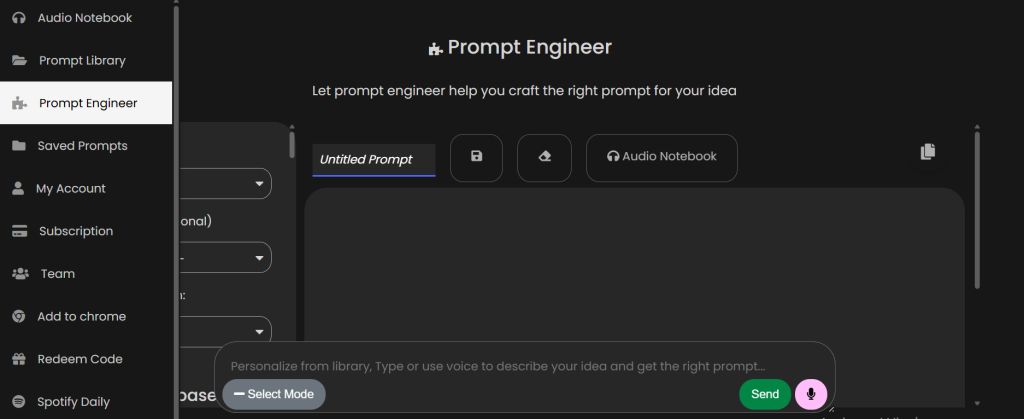
If you cannot find a prompt that matches your specific idea, head over to the Prompt Engineer section from the sidebar. This is where ChatQuick becomes truly powerful. Simply type a description of what you want Claude AI to do, and ChatQuick’s Prompt Engineer will generate a fully optimized prompt tailored to your idea.
You can also use your voice to describe your idea thanks to the built-in microphone feature on the input bar. The Prompt Engineer gives you options to select the mode, tone, and style of the prompt before generating it. Once the prompt is ready, you can save it, send it to your Audio Notebook, or copy it instantly with one click.
Step 4: Copy the Prompt and Paste It Into Claude AI
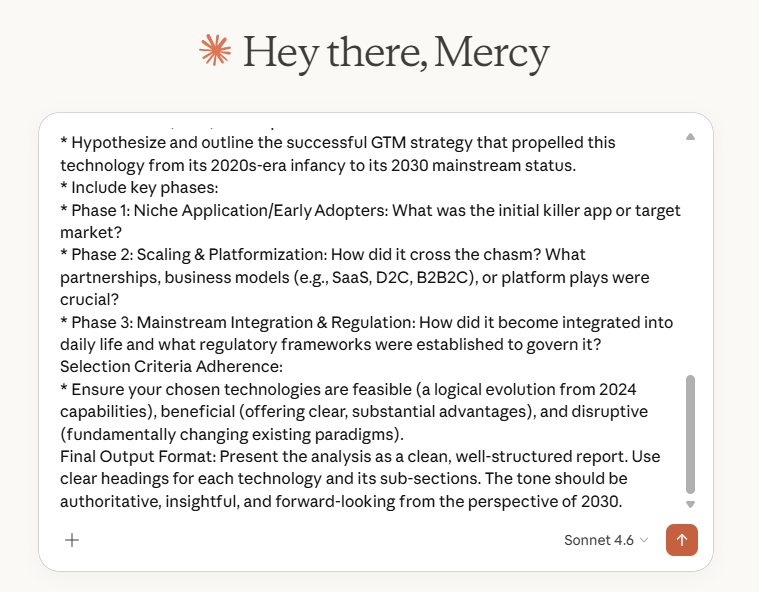
Once you have your prompt, whether from the Prompt Library or the Prompt Engineer, simply copy it using the copy button on the prompt card or the copy icon in the Prompt Engineer interface. Then open Claude AI, paste the prompt into the message box, and hit send. Claude will process the optimized prompt and deliver a response that is far more detailed, accurate, and structured than what a basic question would produce.
This single step is where you see the biggest difference in your Claude AI results. A well-crafted prompt tells Claude exactly what you need, in what format, and at what level of detail. ChatQuick ensures every prompt you use is built to meet that standard.
Step 5: Install the ChatQuick Chrome Extension
For even faster access, ChatQuick offers a Chrome extension that you can add directly to your browser. This means you can pull up your saved prompts and the Prompt Engineer without switching tabs or navigating back to the website. You can download the extension directly from the ChatQuick website by clicking “Add to Chrome” in the sidebar menu.
The Chrome extension is especially useful for marketers and content creators who use Claude AI throughout their workday. It keeps your prompt library just one click away no matter what you are working on. It is a small addition to your browser that makes a big difference in your daily AI workflow.
Tips to Get the Best Results From Claude AI With ChatQuick Prompts
Always give Claude some context about who you are or what you are working on before or after the prompt if the task is highly specific. The more background Claude has, the more personalized and relevant the response will be. ChatQuick prompts already handle structure, but adding your own context on top of them makes the output even sharper.
Use the upvote feature in ChatQuick’s Prompt Library to save prompts that have worked well for you in the past. Over time, your saved prompts become a personal library of proven formulas for getting great Claude AI responses. This is especially useful for business owners and marketers who run the same types of tasks repeatedly.
Do not be afraid to tweak a generated prompt from the Prompt Engineer before using it. ChatQuick gives you a strong foundation, but you can always adjust the wording to better match your voice or specific situation. Think of it as a first draft that you refine rather than a fixed script you must follow exactly.
Why ChatQuick Is the Best Tool for Prompting Claude AI
ChatQuick stands out because it combines a massive pre-built prompt library with a smart prompt generation engine in a single platform. Most tools give you one or the other, but ChatQuick gives you both plus collaboration tools, audio features, and a Chrome extension all in one place. For anyone serious about getting the most out of Claude AI, it is the most complete solution available today.
The community-powered upvote system means the most effective prompts naturally rise to the top of the library over time. You are not just getting prompts written by one team but the collective wisdom of thousands of AI users who have tested and refined what works. That kind of community-backed quality is rare in any AI tool.
Whether you are writing blog content, generating business strategies, studying for exams, or building workflows for your team, ChatQuick gives you the right prompt for every situation. It removes the barrier between your idea and a great Claude AI response, making the entire experience faster, smarter, and more productive.
Conclusion
Writing great prompts for Claude AI does not have to be complicated or time-consuming. With ChatQuick, you have access to a million-strong library of optimized prompts plus a Prompt Engineer that builds custom ones from scratch based on your idea. The process is simple: visit chatquick.co, find or generate your prompt, copy it, paste it into Claude AI, and watch the difference.
If you want to take your Claude AI results to the next level, ChatQuick is the tool that bridges the gap between what you want and what Claude delivers. Sign up for free at chatquick.co and start generating better prompts today. And for daily use, do not forget to add the ChatQuick Chrome extension to your browser for instant prompt access wherever you work.
