
Prompt generator for Midjourney
Midjourney is one of the most powerful AI image generation tools in the world, but getting truly stunning results depends almost entirely on the quality of your prompt. The difference between a generic image and a jaw-dropping piece of AI art is usually just a better prompt.
The good news is you do not need to be a creative director or a professional artist to write great Midjourney prompts. You just need the right tool in your corner. ChatQuick is the prompt generator that takes your raw idea and turns it into a detailed, optimized Midjourney prompt that actually produces the results you had in your head.
In this guide, we are going to break down exactly how to use ChatQuick as your go-to Midjourney prompt generator, step by step, no technical knowledge needed.
What Makes a Good Midjourney Prompt?
Before we get into the tool, it helps to understand what Midjourney actually responds to. A weak prompt gives Midjourney too little to work with, and the AI fills in the blanks however it wants. A strong prompt gives Midjourney clear direction on the subject, style, lighting, mood, color palette, and composition all at once.
For example, typing “a woman in a forest” gives Midjourney almost nothing to work with. But typing “a cinematic portrait of a woman standing in a misty ancient forest, golden hour lighting, shot on 35mm film, hyper realistic, deep shadows, rich greens” gives it everything it needs to produce something truly stunning. The more specific and descriptive your prompt, the better your output will be every single time.
Writing prompts at that level consistently is where most people get stuck. That is exactly the problem ChatQuick is built to solve, and it does it incredibly well.
What Is ChatQuick?
ChatQuick is an AI prompt platform available at chatquick.co that gives you access to over one million optimized prompts across more than 100,000 use case categories.
It includes a searchable Prompt Library packed with community-tested prompts, a Prompt Engineer tool that generates custom prompts from your ideas, and a Chrome extension so you always have it one click away. It is honestly one of the most useful tools you can add to your creative workflow right now.
What makes ChatQuick perfect for Midjourney specifically is its Prompt Engineer feature. Instead of trying to figure out the right keywords, art styles, and technical Midjourney parameters yourself, you just describe what you want in plain English and ChatQuick builds the full prompt for you. It handles the heavy lifting so you can focus on the creative side.
ChatQuick is free to get started and works for all skill levels from complete beginners who just discovered Midjourney to professional designers who use it every day for client work.
How to Use ChatQuick as Your Midjourney Prompt Generator
Step 1: Head Over to ChatQuick and Sign Up for Free
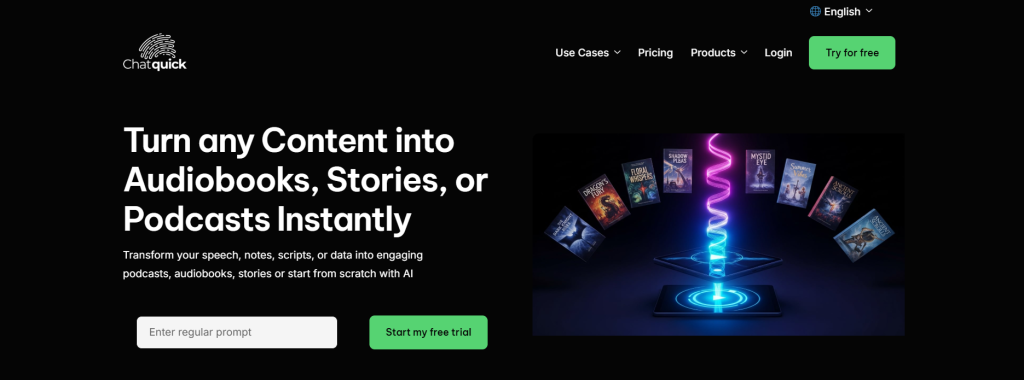
Go to chatquick.co and create your free account. The sign-up process takes less than a minute and gets you immediate access to the full platform. Once you are in, you will see the main dashboard with all of ChatQuick’s features laid out cleanly in the sidebar.
Step 2: Search the Prompt Library for Midjourney Prompts
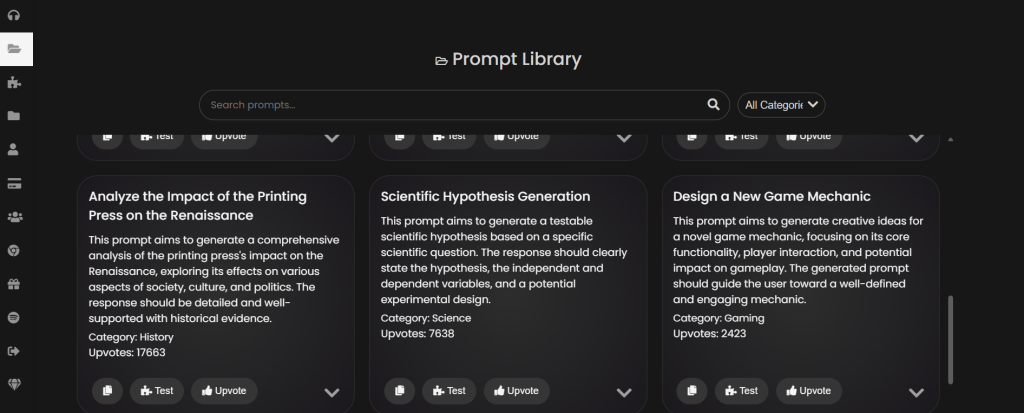
Click on Prompt Library in the left sidebar and use the search bar to search for Midjourney or the type of image you want to create.
You will find a huge range of prompts across categories like art, design, fantasy, architecture, portraits, product photography, and much more. Each prompt card shows you a title, a description of what it produces, and how many community upvotes it has received.
Highly upvoted prompts are a great starting point because they have already been tested and proven by other creators. You can copy any prompt directly, hit Test to see what kind of output it generates, or save your favorites for later.
The library alone saves you hours of experimenting and guessing when you are trying to create consistent, high-quality Midjourney images.
Step 3: Use the Prompt Engineer for Custom Prompts
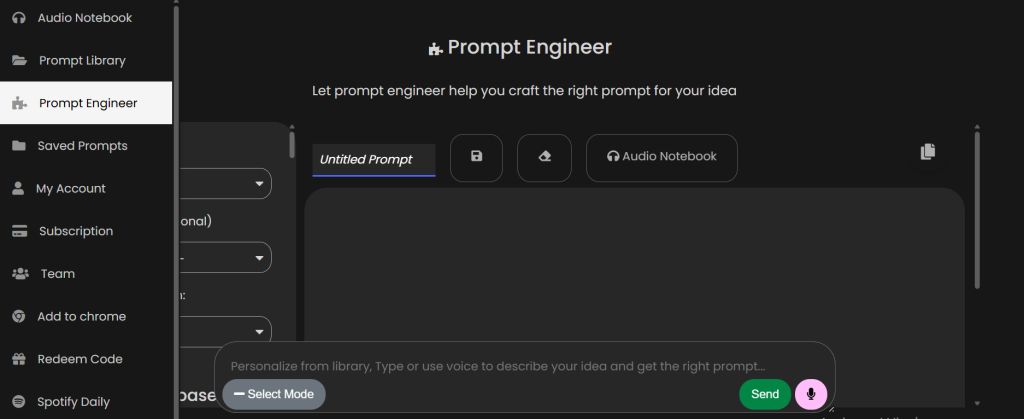
If you have a specific vision in mind that you cannot find in the library, go to the Prompt Engineer section in the sidebar. Type a description of the image you want to create in plain, simple language, and ChatQuick will generate a fully optimized Midjourney prompt for you.
You can type your idea or even use the microphone button to describe it with your voice, which is honestly a game changer when ideas are flowing fast.
The Prompt Engineer lets you select the mode, tone, and style before generating your prompt so the output is tailored exactly to your creative direction. Once the prompt is ready, you can refine it, save it, or copy it instantly. This is where ChatQuick really separates itself from just googling prompt examples and hoping for the best.
Step 4: Copy and Paste Into Midjourney
Once you have your prompt from either the library or the Prompt Engineer, copy it and head straight to Midjourney. Paste the prompt into the message box, hit enter, and watch Midjourney go to work. The difference in output quality compared to a basic prompt is immediately obvious and genuinely exciting the first time you experience it.
You can also tweak the copied prompt slightly before using it to add your own personal touch or adjust specific details. ChatQuick gives you the perfect structure and vocabulary, but you are always in control of the final result. Think of it as having a professional prompt writer on your team who drafts everything and lets you make the final call.
Step 5: Download the ChatQuick Chrome Extension
For the smoothest workflow, grab the ChatQuick Chrome extension by clicking Add to Chrome in the sidebar. This lets you access your saved prompts and the Prompt Engineer directly from your browser without ever switching tabs or navigating back to the site.
If you are someone who uses Midjourney regularly, this extension becomes one of those tools you wonder how you ever worked without.
Pro Tips for Getting Even Better Midjourney Results With ChatQuick
Always save prompts that produce results you love using the Saved Prompts feature in ChatQuick. Over time you will build a personal library of go-to prompts for different styles and projects that you can reuse and remix endlessly. This is especially valuable for designers and content creators who need consistent visual output across campaigns or client work.
When using the Prompt Engineer, be as specific as possible about the mood, color palette, and style you are going for. The more detail you give ChatQuick, the more refined and accurate your generated prompt will be. Phrases like “warm cinematic tones,” “dark moody fantasy,” or “clean minimalist product shot” go a long way in shaping the final result.
Do not sleep on the community upvote system inside the Prompt Library. The most upvoted prompts represent what thousands of Midjourney users have found to work best in real use. Starting with a highly upvoted prompt and customizing it using the Prompt Engineer is one of the fastest ways to go from idea to stunning image with minimal effort.
Why ChatQuick Is the Go-To Midjourney Prompt Generator
There are plenty of prompt generators out there but most of them give you a basic template and leave you to figure out the rest. ChatQuick goes much further by combining a million-prompt library, a smart AI-powered Prompt Engineer, voice input, saved prompts, team features, and a Chrome extension all in a single platform. It is built for people who actually use AI tools seriously and need something that keeps up with their pace.
The community-powered library means you are always working with prompts that have been tested and refined by real creators, not just generated by an algorithm.
That combination of human curation and AI generation is what makes ChatQuick stand out as the most practical Midjourney prompt tool available today. Whether you are creating art for fun, building a brand, or working with clients, ChatQuick makes the process faster and the results noticeably better.
Start Creating Better Midjourney Images Today
Midjourney is only as good as the prompts you give it, and now you have a tool that handles the hardest part for you. Head to chatquick.co, sign up for free, and start generating prompts that actually bring your creative vision to life. Add the Chrome extension while you are at it so ChatQuick is always within reach whenever inspiration hits.
You do not have to spend hours tweaking prompts and getting mediocre results anymore. With ChatQuick in your workflow, great Midjourney images are just a few clicks away every single time.
